

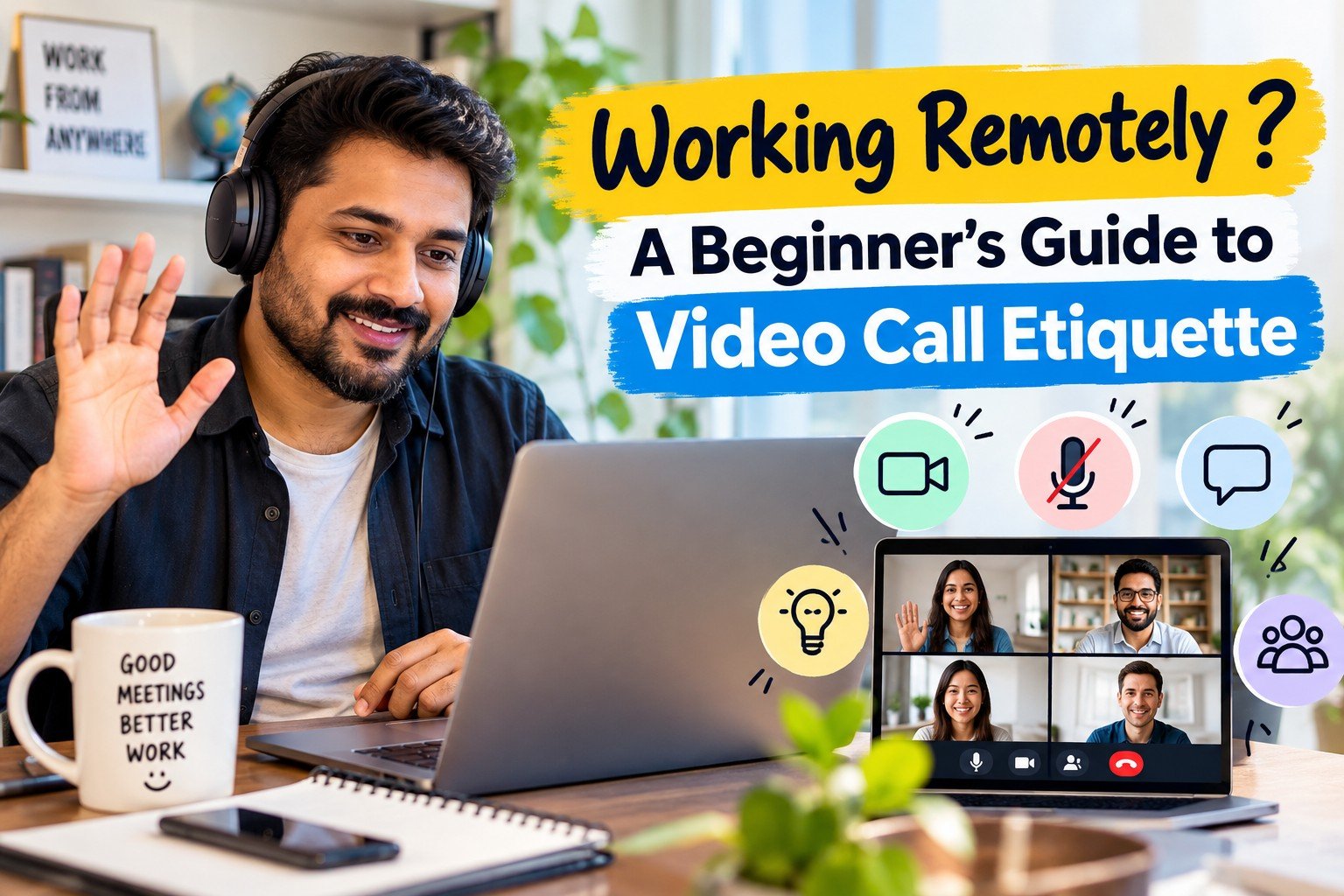
Not long ago, a video call was a special occasion. It was what you did when a colleague in another country couldn’t travel and the matter was too serious for email. Then the pandemic arrived, and the video call went from rare event to default setting. Today, two colleagues sitting in different corners of the same office floor will happily hop on a call rather than walk thirty steps. Whatever the platform, we’ve all been in one.
With every new way of communicating comes a new grammar of behaviour. The past few years were a strange transition period, as work moved from strictly in-person to hybrid and then to something far more online-friendly. Nobody handed out a rulebook, so most of us learned by doing, usually by being the person who spoke for two minutes while still on mute. This guide is that missing rulebook. It will help you look approachable, polished and prepared on any virtual call.
Master the mute button
The mute button is the most powerful and most misused button in modern working life. Everyone has seen the colleague who is passionately explaining something to a silent screen, or heard the unexpected soundtrack of a pressure cooker, a barking dog or a distant construction site.
- Mute yourself when you’re not speaking. Background noise travels further than you think, and a keyboard clacking away sounds like a hailstorm to everyone else.
- Raise your hand when you have something to add. Most platforms have a “raise hand” feature. It saves everyone from the awkward moment when two people start talking at once and then both say, “No, you go ahead.”
- Mute again once you’re done. Say your piece, then go back to mute. Think of it as handing the microphone back.
- Share your documents in the chat. If you’re referring to a tracker or document, drop it in the chat so everyone can follow along with the actual data. It also leaves a handy record after the call ends.
Camera on or camera off?
There’s no universal law here, but there are some sensible norms.
- With external clients, keep your camera on. A visible face builds trust. It shows you’re present, attentive and happy to be accountable for what you’re saying.
- Camera off is fine when you have a genuine reason. If you’re travelling, on a patchy connection, or dealing with disturbances around you, switching it off is perfectly acceptable.
- When in doubt, lean towards on. Camera on is still the preferred default. It’s much easier to tell whether a joke landed or whether people are following when you can see them.
An interesting observation: a meeting where everyone has their camera off tends to feel flat and oddly quiet, while one where everyone has it on feels livelier, even if nobody is saying more. Faces do a lot of silent work.
Background and lighting basics
You don’t need a studio. You just need to avoid becoming the most interesting thing on the screen.
- Keep the background simple. A plain wall, a tidy shelf or a neat corner works well. A mountain of laundry, a moving ceiling fan or a family member wandering past will pull attention away from what you’re saying.
- Make sure your face and upper body are clearly visible. Sit where people can see your shoulders and expressions, not just your forehead or the ceiling.
- Face the light, don’t sit in front of it. A window in front of you is your best friend. A window behind you turns you into a mysterious silhouette.
- Put your camera at eye level. Stack your laptop on a few books if needed. Looking slightly down at the screen is far more flattering than the dreaded up-the-nose angle.
Use the built-in tools (lightly)
Most video platforms have a small dressing room hidden in the settings menu, and most of us never open it. Here’s what’s usually inside:
- Virtual backgrounds hide a messy room behind an image or a blur. A subtle blur or a plain, professional image works best. Save the beach and the spaceship for the office party, since they tend to glitch around your head whenever you move.
- HD video makes you look sharper on screen. It’s worth switching on for client calls and presentations.
- Lighting adjustment brightens you up when your room is dim. It’s a handy rescue when you can’t move closer to a window.
- Touch up my appearance gently smooths your video. A little goes a long way, because the goal is to look well-rested, not airbrushed.
- Avatars, filters and effects are the fun extras. They’re great for casual team catch-ups, but think twice before showing up as a cartoon fox in front of a client.
An interesting observation: the best settings are the ones nobody notices. If a colleague comments on your background or your skin, you’ve probably overdone it.
Test before you join
Most platforms let you preview your video before a meeting. Take two minutes before an important call to check your lighting, your background and whether a virtual background is cutting into your shoulders. It’s far better to discover the glitch yourself than to have thirty people watch your head disappear.
Will it work on your device?
Not every feature works everywhere, so it helps to know the basics:
- Keep your app updated. High-quality video needs a recent version of the desktop or mobile app.
- Your computer needs to be reasonably modern. Filters and studio-style effects need newer processors, so a very old laptop may struggle.
- Phones have fewer options. Some effects, and sometimes the touch-up feature, aren’t available on mobile apps, and what’s offered can differ between Android and iPhone.
- Some features may be missing from your account. Availability can depend on your region and account type, and admins can switch certain features on or off. If you can’t find an option, it’s probably not you. Check with your IT team.
Good video call etiquette comes down to a few simple habits: mute when you’re not speaking, show your face when it matters, and make sure people can actually see you. Use the built-in tools lightly and test them beforehand, and you’ll come across as approachable, prepared and considerate on any platform.
Discover more from USAMallu
Subscribe to get the latest posts sent to your email.